
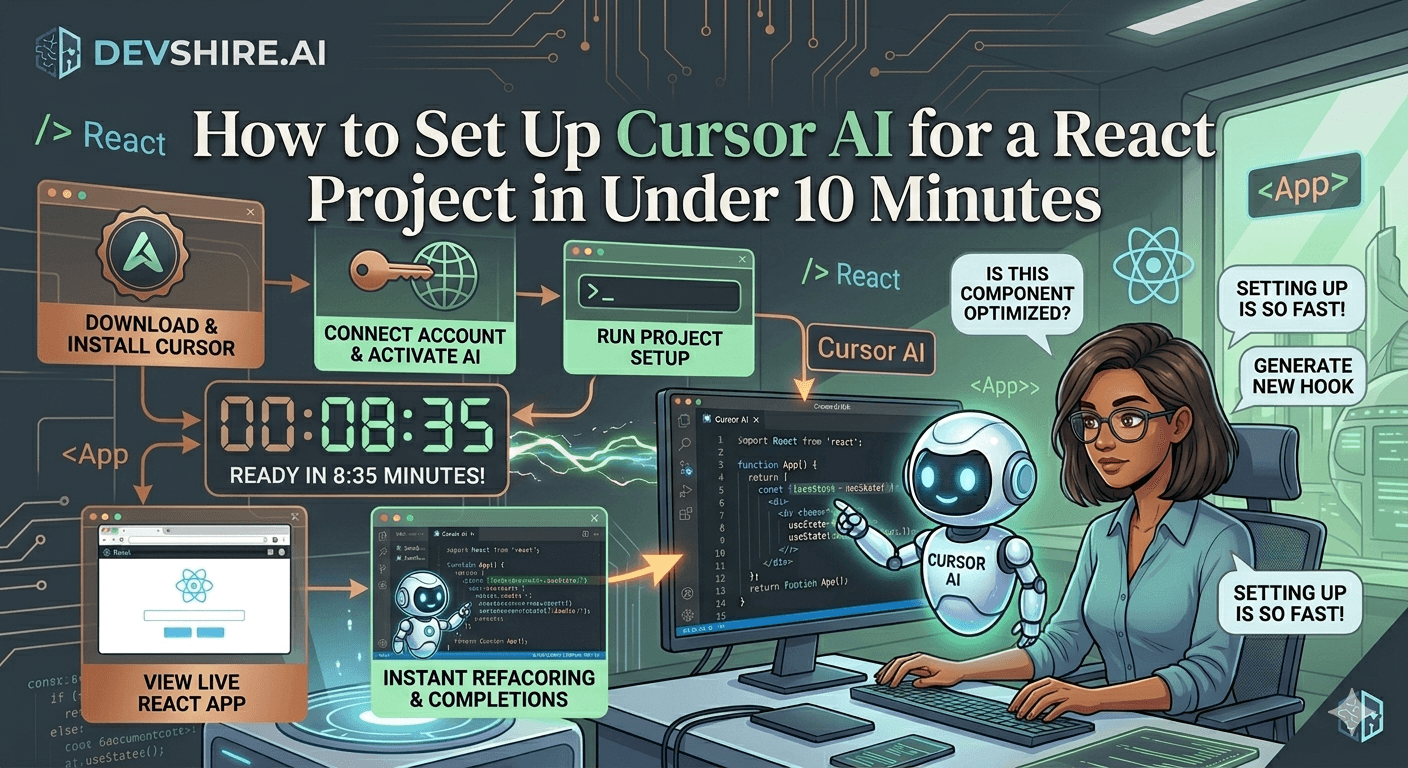
Most Cursor AI tutorials spend 20 minutes on settings menus before you write a single line of code. This guide skips that. You'll have Cursor AI running on a React project in under 10 minutes — and you'll understand the two configuration decisions that actually matter for React development. The rest is defaults. Cursor's install-to-useful time is genuinely fast, but only if you know which steps to skip and which ones to get right the first time.
💡 TL;DR
Cursor AI React setup takes under 10 minutes: download Cursor, import your VS Code settings in one click, open your React project, and configure two things — your AI model (use claude-3.5-sonnet or GPT-4o) and your .cursorrules file with your stack specifics (React version, styling library, component patterns). The .cursorrules file is the step most tutorials skip. Without it, Cursor generates generic React code that ignores your existing patterns. With it, you get context-aware suggestions from the first prompt.
What Makes Cursor Different From Copilot for React
Before you set anything up, understand why you'd use Cursor over GitHub Copilot for a React project specifically. The difference isn't autocomplete quality — they're comparable on that. The difference is how each tool handles multi-file context.
In a React project, components don't live in isolation. A Button component needs to match the design system. A form needs to use the same validation pattern as other forms. A data-fetching hook should follow the same shape as the existing ones. Copilot reads your open tabs. Cursor reads your repo.
That sounds like a minor difference. In practice, it means Cursor generates components that fit your existing patterns. Copilot generates components that look correct in isolation but often need reworking to match what's already in the codebase. For greenfield projects, the gap is small. For projects with 3+ months of established patterns, the gap is significant.
✅ When to use Cursor vs Copilot for React
Cursor: established React codebase with patterns, multi-file feature work, refactoring existing components. Copilot: new project with no patterns yet, quick one-off completions, teams already deeply embedded in the GitHub ecosystem.
Step-by-Step: Cursor AI React Setup
Here's the exact process. No filler steps. No explanations of settings you'll never change.
Download and install Cursor
Go to cursor.com and download for your OS. It's an Electron app — install is standard. Takes about 2 minutes including download.
Import your VS Code settings
On first launch, Cursor asks if you want to import VS Code settings. Click yes. This brings over your extensions, keybindings, themes, and language settings. You don't need to reconfigure anything. This step alone saves 30 minutes.
Open your React project
File → Open Folder → select your project root. Cursor indexes the codebase on first open. For a medium React project (500–1,000 files), this takes 20–60 seconds.
Set your AI model
Open Settings (Cmd/Ctrl + ,) → Cursor Settings → Models. Set your primary model to claude-3.5-sonnet or GPT-4o. Both are strong. Claude 3.5 Sonnet is generally better for reasoning about complex component logic. GPT-4o is slightly faster on inline completions. Pick one and stay consistent — switching models mid-project introduces inconsistency in code style.
Create your .cursorrules file
This is the step that matters most. See the next section.
The .cursorrules File: The Step Everyone Skips
A .cursorrules file lives in your project root and tells Cursor everything about your codebase that it can't infer from the code alone. Without it, Cursor generates generic React code. With it, it generates code that fits your project.
Here's a practical .cursorrules template for a React project:
💡 .cursorrules template for React projects
You are working on a React 18 project using TypeScript, Tailwind CSS, and React Query for data fetching. Components use functional syntax with hooks. State management is Zustand. Forms use React Hook Form with Zod validation. All new components should follow the existing pattern in /src/components. Prefer named exports over default exports. Test files use Vitest and React Testing Library. Never use class components. Never use Redux.
That last line — "Never use Redux" — is an example of the kind of constraint you need to add for your project. ChatGPT and Cursor both default to suggesting Redux for state management because it appears frequently in training data. If you use Zustand, Jotai, or Context API, say so explicitly. Otherwise you'll spend time redirecting every state-related suggestion.
The misconception here is that .cursorrules is optional or just a nice-to-have. It isn't. It's the difference between a context-aware collaborator and a generic code generator. Set it up before your first real task.
Running Your First Cursor AI Task on a React Component
Setup is done. Here's how to run your first real task. Let's say you want to build a new modal component that follows your existing patterns.
Open the Composer panel (Cmd/Ctrl + I or the Composer button in the sidebar)
Type: "Create a new Modal component that follows the same pattern as the existing Dialog component in /src/components/Dialog.tsx. It should accept isOpen, onClose, title, and children props. Use Tailwind for styling and match the existing animation style."
Cursor will read Dialog.tsx, understand the pattern, and generate a matching component
Review the diff — Cursor will show you exactly what it wants to create
Accept, modify, or reject each change individually
⚠️ Always review the diff
Cursor's Composer sometimes creates or modifies files you didn't explicitly ask about — especially index files and type definition files. Always check the full list of proposed changes before accepting. Unreviewed changes to barrel exports have broken builds in ways that took 30 minutes to trace.
Trusted by 500+ startups & agencies
"Hired in 2 hours. First sprint done in 3 days."
Michael L. · Marketing Director
"Way faster than any agency we've used."
Sophia M. · Content Strategist
"1 AI dev replaced our 3-person team cost."
Chris M. · Digital Marketing
Join 500+ teams building 3× faster with Devshire
1 AI-powered senior developer delivers the output of 3 traditional engineers — at 40% of the cost. Hire in under 24 hours.
Three Cursor Workflows Specific to React Development
Beyond component generation, here are three workflows that save the most time on React projects specifically.
Refactoring class components to hooks
If you're maintaining a legacy React codebase, this is the highest-ROI use of Cursor. Open the class component, open Composer, type: "Refactor this class component to a functional component with hooks. Preserve all existing behavior. Add a comment wherever you made an assumption about the original intent." The assumption-flagging instruction is critical — it surfaces ambiguous cases instead of silently guessing.
Generating TypeScript interfaces from API responses
Paste a sample JSON API response into Composer. Ask: "Generate TypeScript interfaces for this API response. Use PascalCase for type names. Mark optional fields as optional. Nest interfaces where appropriate rather than using flat types." This saves 20–40 minutes per new API integration.
Test generation for existing components
Open a component. Ask Cursor: "Write Vitest tests for this component covering: renders correctly with required props, handles the onClose callback, matches the snapshot, and handles an empty children case. Use React Testing Library patterns." You get a working test file in under a minute.
Managing Context and Performance in Large React Projects
Cursor's repo indexing is powerful, but it has limits. For large React projects — 1,000+ components, multiple packages in a monorepo — the context quality degrades as the scope gets too broad.
The practical fix: use @-mentions to pin specific files. In Composer, type @filename to reference a specific file directly. This tells Cursor exactly which files matter for this task, rather than letting it decide based on keyword relevance. For React projects, always @-mention the component file, its types file, and the closest test file when generating anything non-trivial.
Also — Cursor's monthly token usage is capped on the Pro plan ($20/month). If you're running large agentic tasks daily, you'll hit the limit. The overage cost is reasonable, but track it. Most developers on the Pro plan use 40–60% of their monthly allocation on typical React feature work without needing to upgrade.
What Goes Wrong in the First Week
Three mistakes that come up consistently when developers first set up Cursor for React work:
❌ Skipping .cursorrules
Covered above — but worth repeating. Without .cursorrules, you'll spend more time correcting generic output than you save on generation. Set it up on day one.
❌ Using Composer for everything
Composer is for multi-step, multi-file tasks. For single-line completions and small edits, use inline chat (Cmd/Ctrl + K) instead. Composer has more latency than inline. Using it for small tasks slows you down.
❌ Accepting diffs without reading them
This produces subtle bugs that take hours to trace. Build the habit of reading every diff, even on tasks that seem simple. Five seconds of review prevents 30 minutes of debugging.
Should You Switch Fully to Cursor or Keep VS Code?
Most React developers who try Cursor end up switching fully within two weeks. The editor is VS Code under the hood — all your extensions work, all your keybindings work, the interface is identical. The switch cost is essentially zero.
The only reason to keep VS Code: if your team standardises tooling and not everyone wants Cursor. In that case, Copilot in VS Code is the pragmatic choice — everyone stays on the same editor, and you get meaningful AI assistance without a workflow split.
But for individual developers with choice over their tools: switch. Cursor's free tier gives you enough to evaluate properly. Upgrade to Pro only after you've confirmed the workflow fits — usually takes less than a week on a real project.
Why Devshire.ai Screens Specifically for Cursor Proficiency
At devshire.ai, the Cursor AI React setup is part of our standard developer screen. We run a live build task — typically a new component and a refactor of an existing one — and watch how the developer uses Cursor throughout. The specific things we look for: do they use .cursorrules? Do they review diffs carefully? Do they use @-mentions for context pinning? Do they know when to switch from Composer to inline chat?
These aren't junior-level questions. They're workflow questions that separate developers who are genuinely 2–3× more productive with AI from developers who have the tools installed but aren't extracting real value.
Every developer in the devshire.ai network has passed this screen. If you need a React developer who can ship with Cursor from day one — not after a 2-week learning curve — that's the shortlist we build.
The Bottom Line
Cursor AI React setup takes under 10 minutes: install, import VS Code settings, open project, set model, create .cursorrules.
The .cursorrules file is the most important configuration step. Without it, Cursor generates generic code. With it, it generates code that fits your project's patterns from the first prompt.
Always review Composer diffs before accepting. Cursor sometimes modifies files you didn't intend to change — especially barrel exports and type definition files.
Use Composer (Cmd + I) for multi-file tasks. Use inline chat (Cmd + K) for small edits. Using Composer for everything adds unnecessary latency.
For large React projects, use @-mentions to pin relevant files. Broad repo context degrades quality for complex components — precision works better.
The switch from VS Code to Cursor is near-zero cost — all extensions and keybindings transfer. Evaluate on the free tier for one week before upgrading to Pro.
Claude 3.5 Sonnet as the backing model gives better results for complex component logic. GPT-4o is marginally faster for simple completions. Pick one and stay consistent.
Frequently Asked Questions
How long does Cursor AI React setup take?
Under 10 minutes if you follow the steps in order: install (2 min), import VS Code settings (30 sec), open project and let it index (1–2 min), set model (1 min), create .cursorrules (3–5 min). The .cursorrules step is the only one with variable time — it depends on how much detail you want to include about your specific stack and patterns.
What should I put in my .cursorrules file for a React project?
At minimum: your React version, your TypeScript usage, your styling library (Tailwind, CSS Modules, styled-components), your state management choice, your form library, your test framework, your component naming and export conventions, and any patterns you explicitly don't want to use (class components, Redux, etc.). More detail produces better output — but even a 5-line .cursorrules is better than none.
Is Cursor AI free for React development?
Cursor has a free tier that includes a limited number of fast model requests per month. For occasional use or evaluation, the free tier is enough. For daily React development on a real project, you'll likely need the Pro plan at $20/month. Most developers recoup that in the first week through reduced debugging and boilerplate time.
Does Cursor work with all React frameworks?
Yes — Next.js, Remix, Vite + React, Create React App (legacy), and any other React-based setup. The .cursorrules file is where you specify your framework. For Next.js specifically, note whether you're using the App Router or Pages Router — Cursor generates significantly different code for each, and defaulting to App Router in a Pages Router project causes problems.
Can I use Cursor with a team where some people use VS Code?
Yes. Cursor is just an editor — there's no server-side dependency that requires everyone to use it. Your codebase, git workflow, and CI pipeline don't change. Developers on VS Code with Copilot and developers on Cursor can work on the same project without conflicts. The .cursorrules file is just a text file that VS Code users can ignore.
Need React Developers Who Ship With Cursor From Day One?
devshire.ai screens every React developer on real Cursor proficiency — not just whether they have it installed. You get a shortlist of developers who know the full workflow: .cursorrules, Composer, context pinning, and diff review. Freelance and full-time. Shortlist in 48–72 hours.
Find Cursor-Proficient React Developers →
No upfront cost · Shortlist in 48–72 hrs · Freelance & full-time · Stack-matched candidates
About devshire.ai — devshire.ai matches AI-powered engineering talent with product teams. Every developer has passed a live AI proficiency screen covering tool use, output validation, and codebase review. Freelance and full-time options. Typical time-to-hire: 8–12 days. Start hiring →
Related reading: Best AI Coding Assistants of 2026 — Ranked for Speed and Accuracy · ChatGPT for Software Development: 10 Real Use Cases · Prompt Engineering for Developers: Techniques That Actually Work · Best Tech Stack for Startups in 2026 (React + Node.js + AI) · Browse Pre-Vetted React Developers — devshire.ai Talent Pool
📊 Stat source: Cursor.com — Official Documentation
🖼️ Image credit: Cursor.com
🎥 Video: Jack Herrington — "Cursor AI for React Developers" (500K+ views)







Devshire Team
San Francisco · Responds in <2 hours
Hire your first AI developer — this week
Book a free 30-minute call. We'll match you with the right developer for your project and get you started within 24 hours.
<24h
Time to hire
3×
Faster builds
40%
Cost saved